Aircraft Maintenance Assist
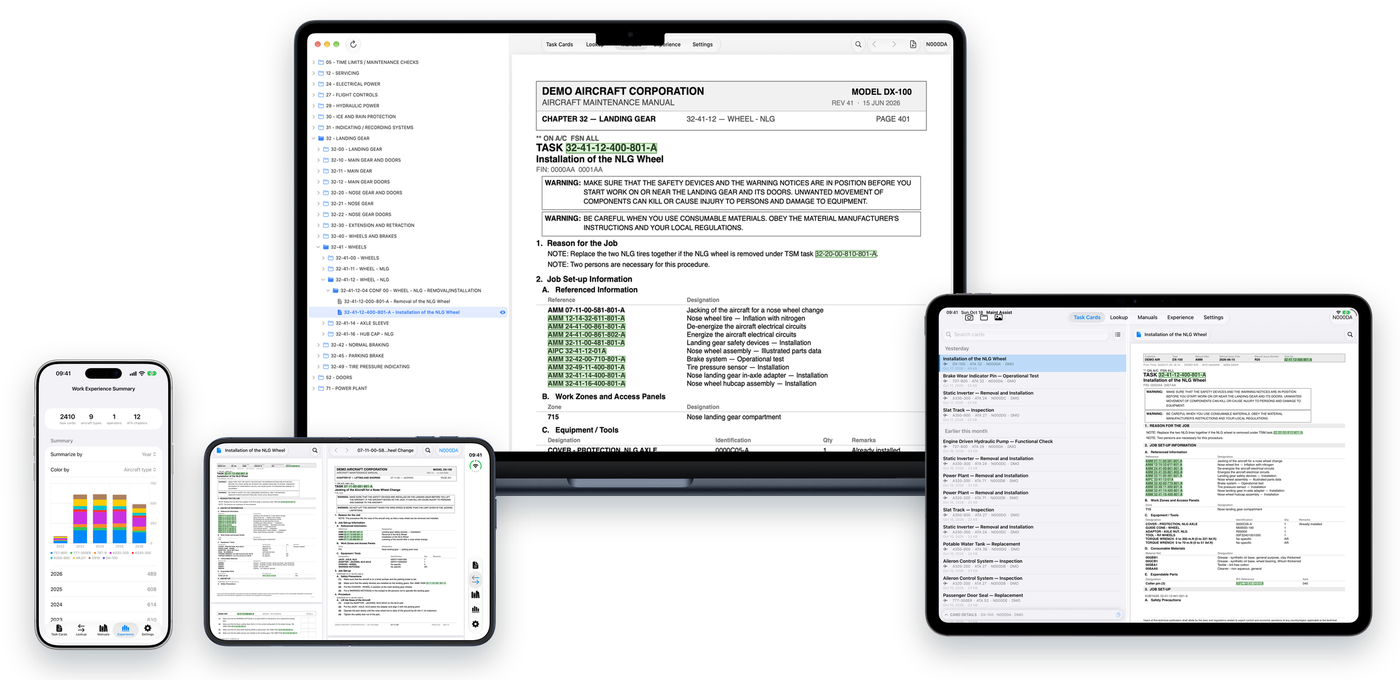
Your task card on the left, the manual on the right.
The everyday companion for aircraft maintenance technicians. Record your daily work as task cards, keep them organised by aircraft, operator and ATA chapter, and build a lasting record of your experience.
iPhone, iPhone Duo, iPad and Mac · Free — no subscription, no in-app purchases
What it does
Recording your work is what the app is for, and it needs no account. Opening manuals is an optional extra for technicians who already hold their own provider access.
Capture your work
- Scan paper task cards with the camera, with automatic edge detection, perspective correction and shadow reduction.
- Or import a PDF or photo you already have.
- On-device text recognition finds the title, ATA chapter, aircraft type, registration and operator.
- Review and edit the details, and add your own remarks.
Keep your cards organised
- Keep your task cards together in a searchable library.
- Store them on your device or in your own iCloud Drive. Switch at any time and the app moves your files.
- Every card is two ordinary files you can copy anywhere: the document and a small details file.
Open the manual
- With your own Airbus airnavX, MyBoeingFleet or COMAC FLYWIN account, tap a recognised reference on a card to open its manual document.
- Supports task numbers, page blocks and S1000D data modules, and recognises AMM, AIPC, IPC, FIM, TSM, SSM, ASM, WDM, AWM, SRM and MPP references.
- Follow links inside a manual, with back and forward through the documents you have opened.
- Browse the manual tree for the aircraft you are working on in the Manuals tab.
Build a record of your experience
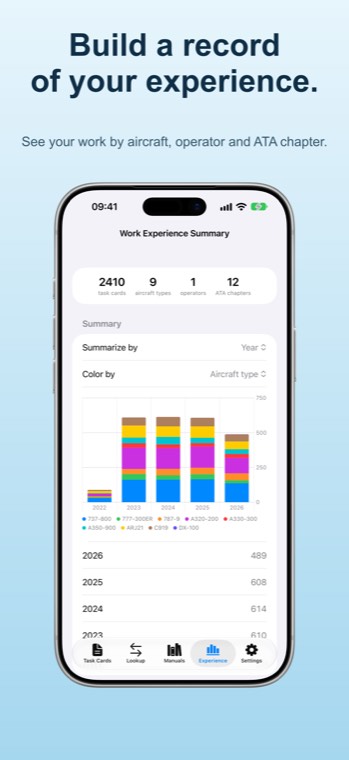
- See totals by aircraft type, operator, ATA chapter, month and year.
- Cross-tabulate rows and columns to create the breakdown you need.
- Save a report image to Photos.
- Cards keep counting after their documents are cleaned up.
Yours, and private
- No developer-operated server, analytics, tracking or ads.
- No in-app purchases and no subscription.
- Manufacturer sign-in takes place on the provider's own page.
- Record keeping works offline. Online manual access needs an internet connection and your own authorised account.
See it on your device
The same library on iPhone, iPhone Duo, iPad and Mac. All data shown is fictional.
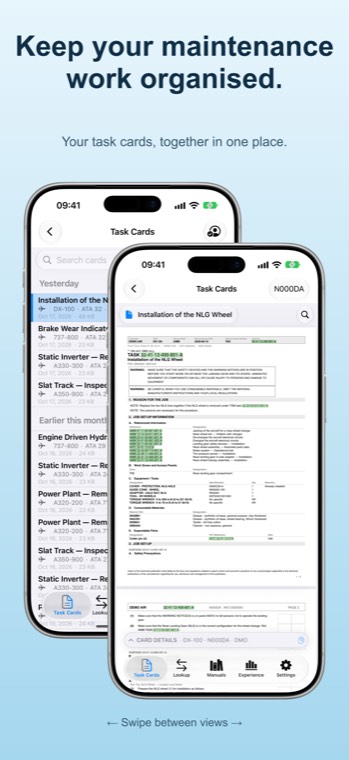
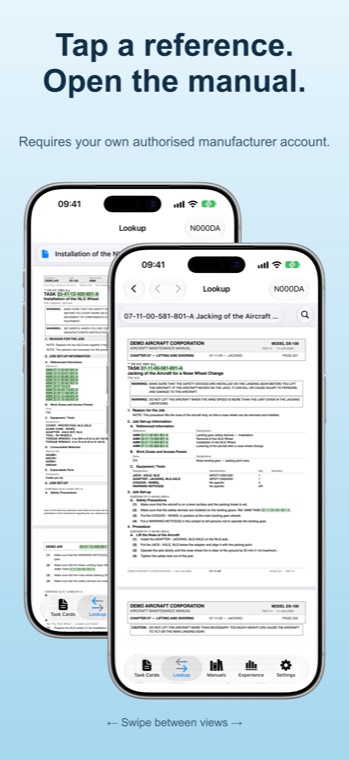
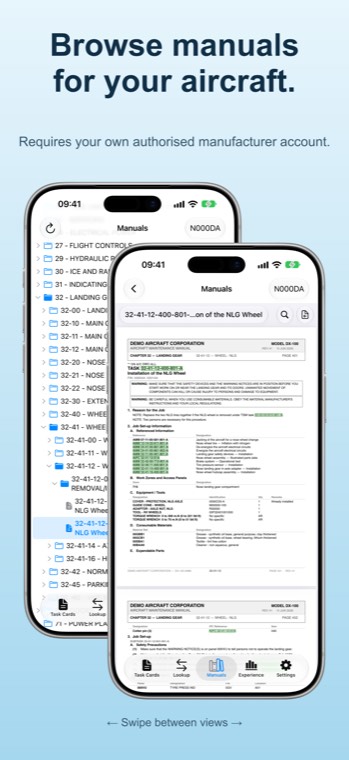
On iPhone: swipe between the card and the manual it points to.
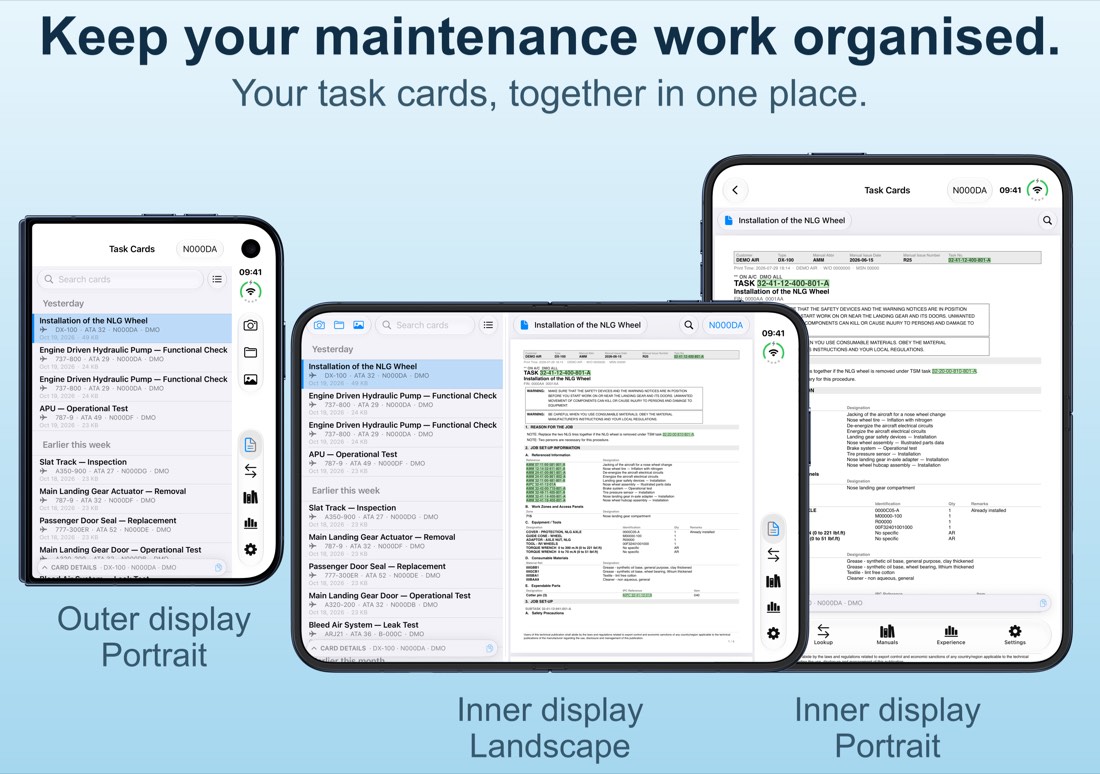
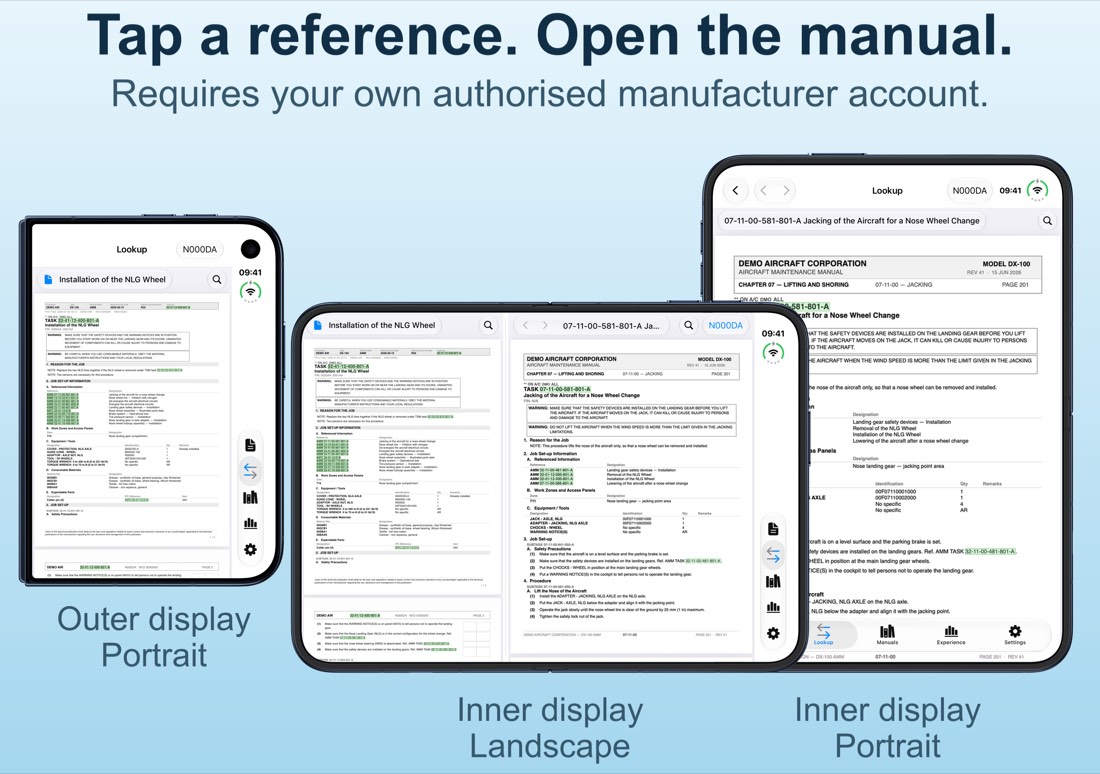
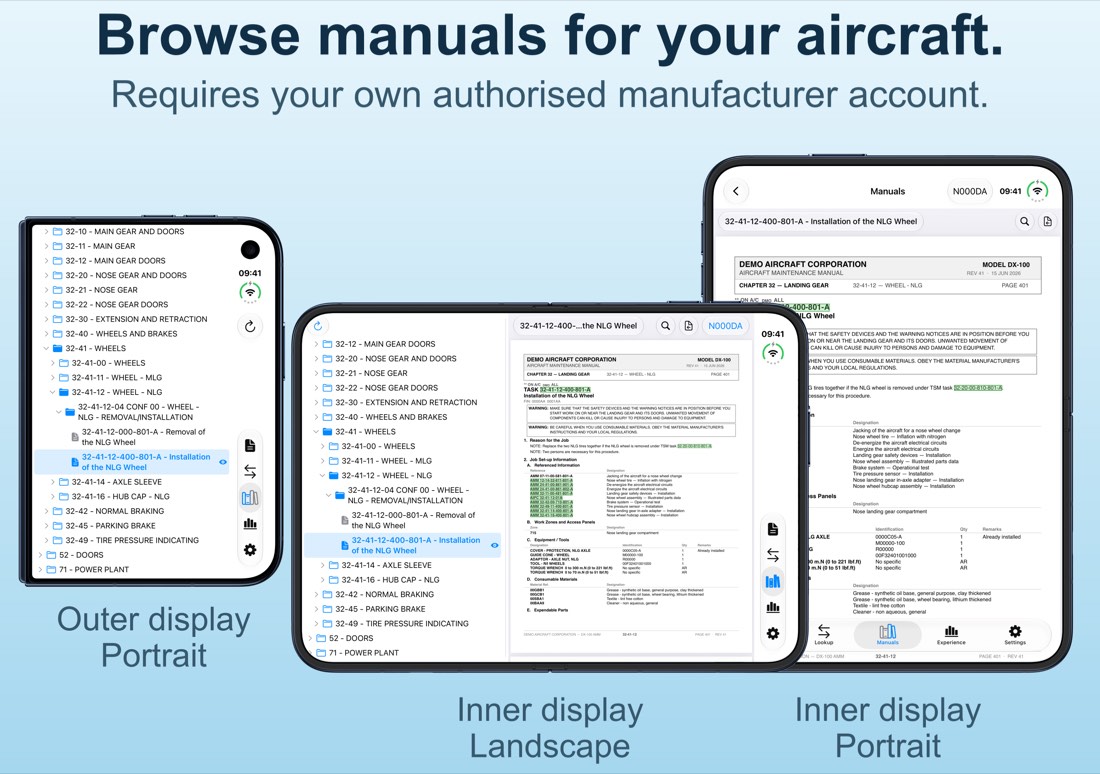
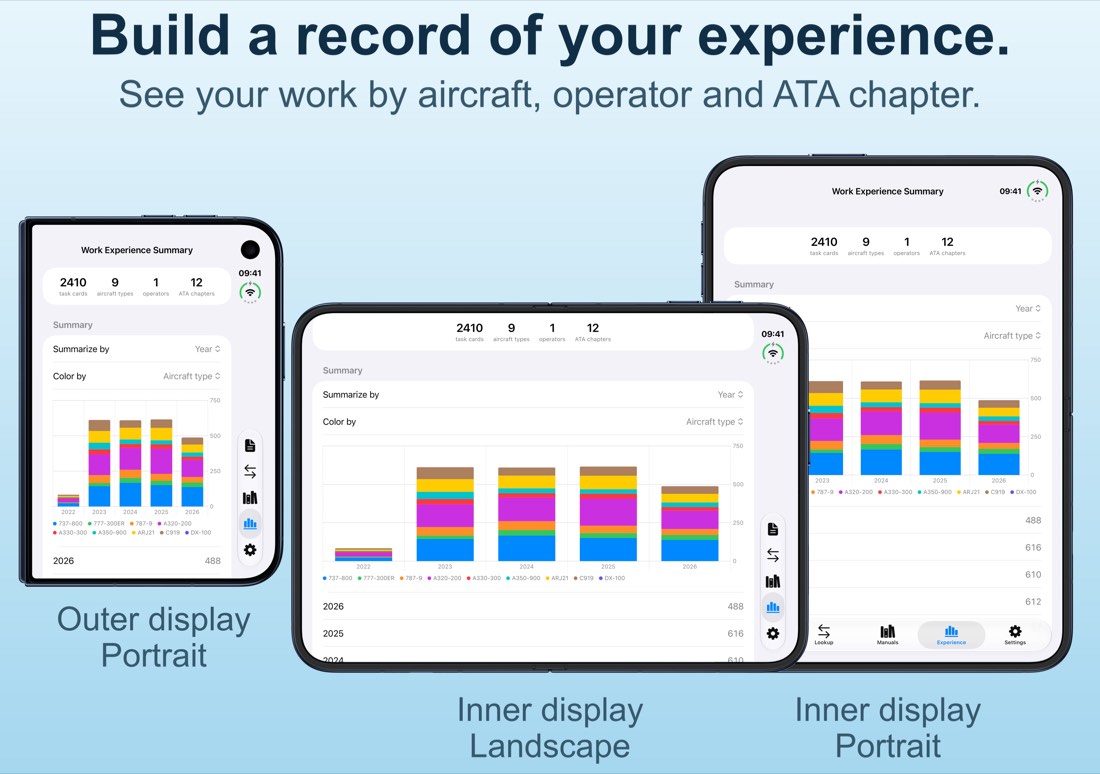
On iPhone Duo: unfold, and the card and the manual sit side by side.
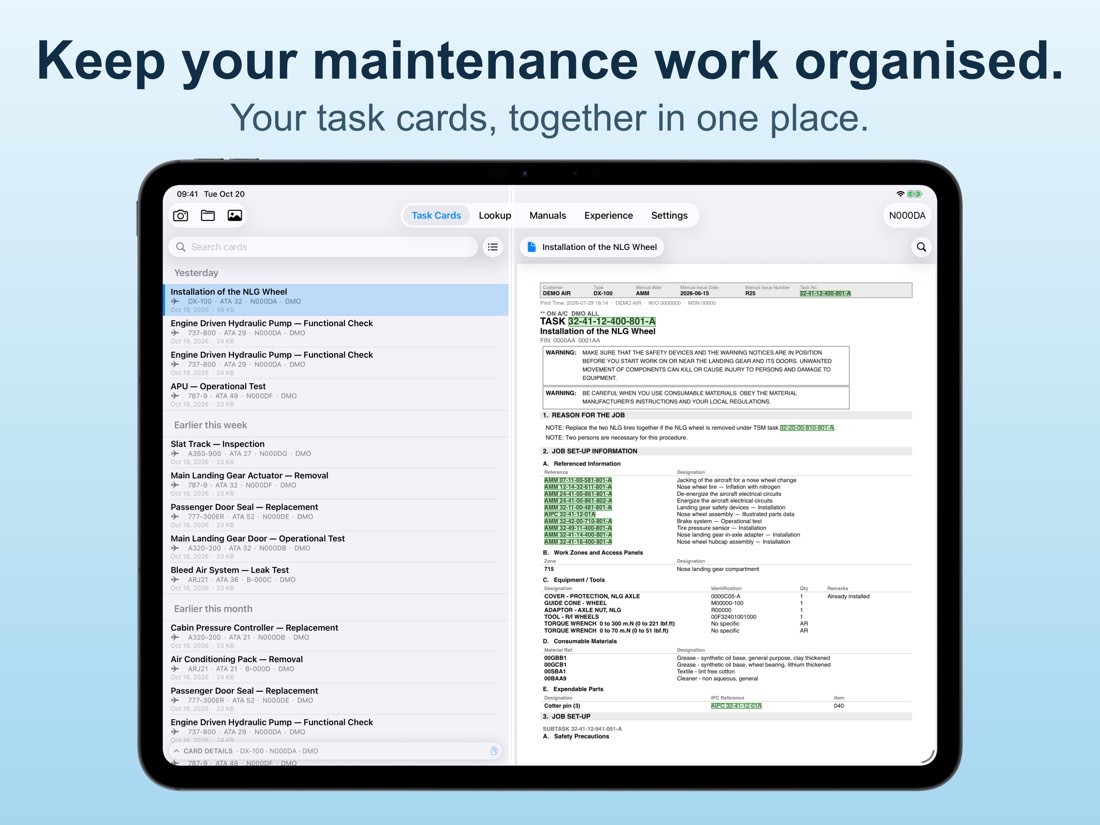
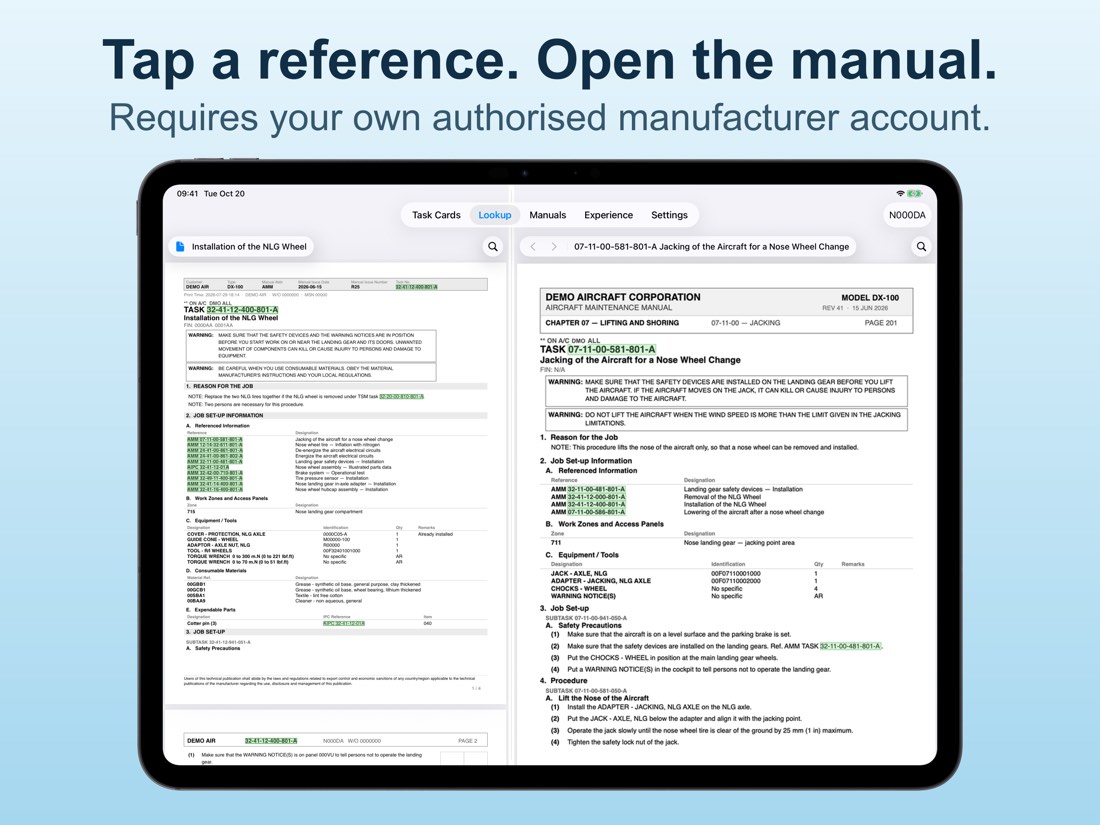
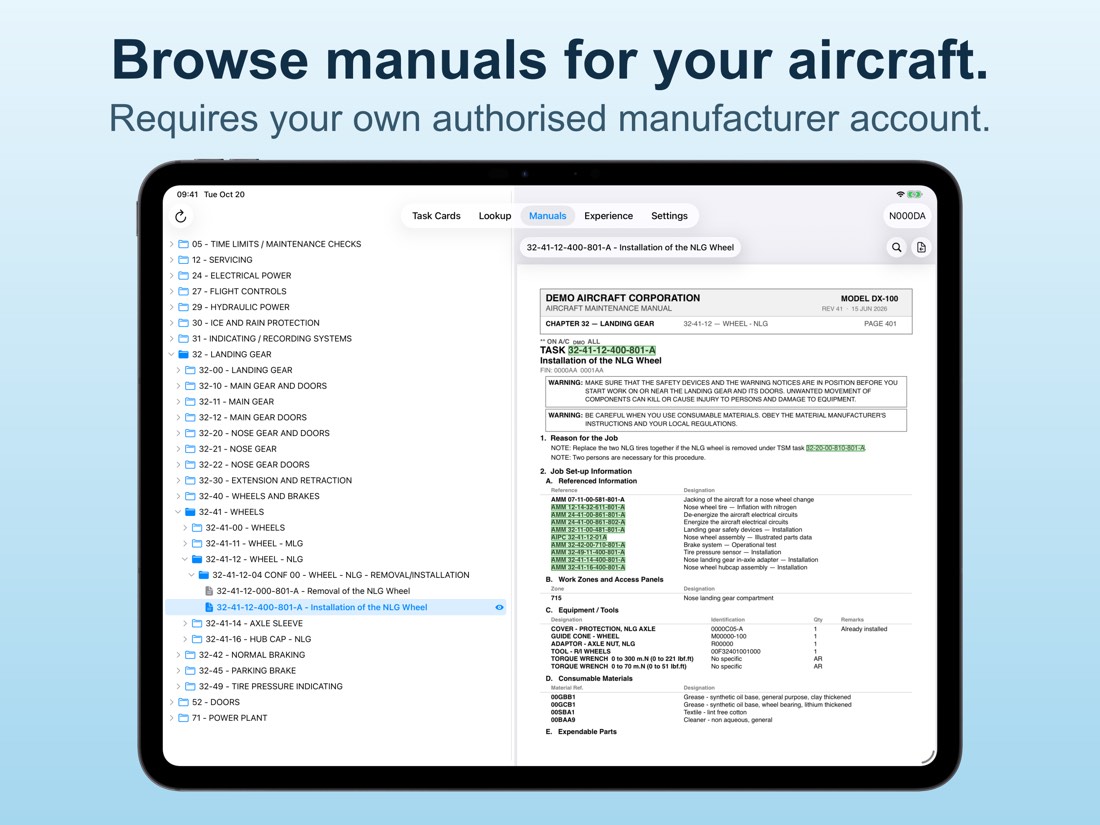
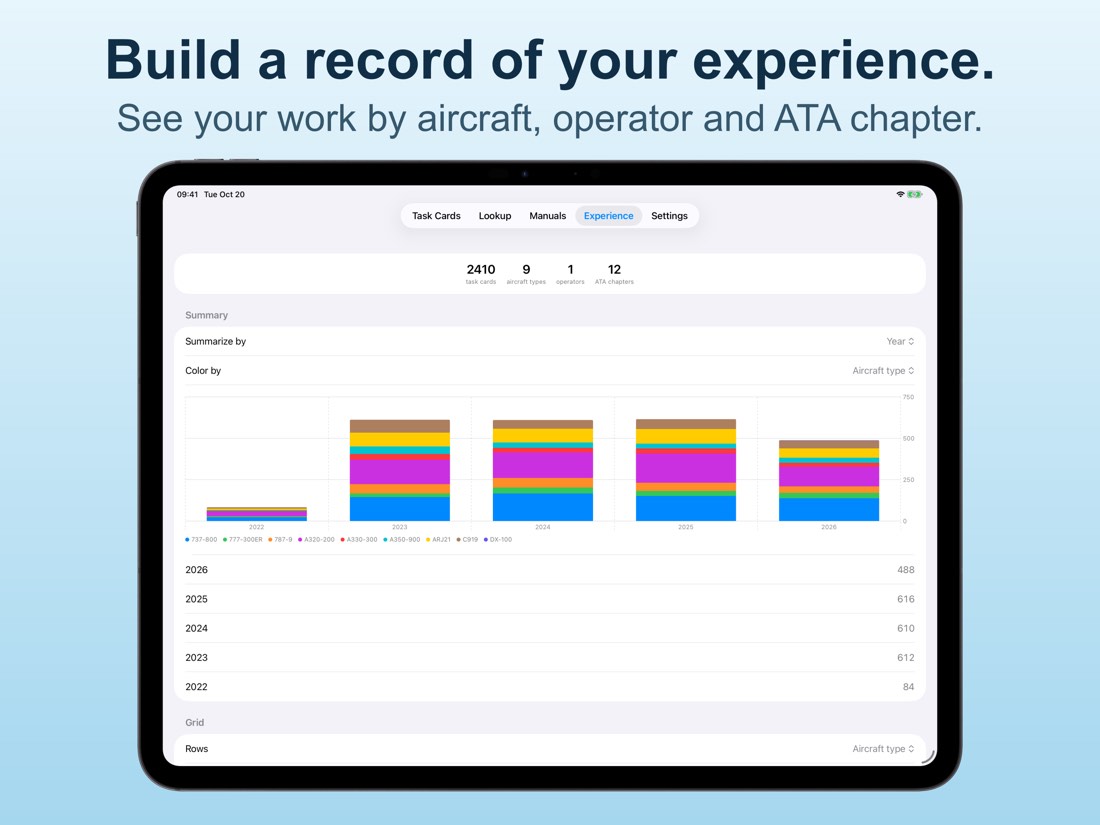
On iPad: card and manual side by side, with room for the tree.
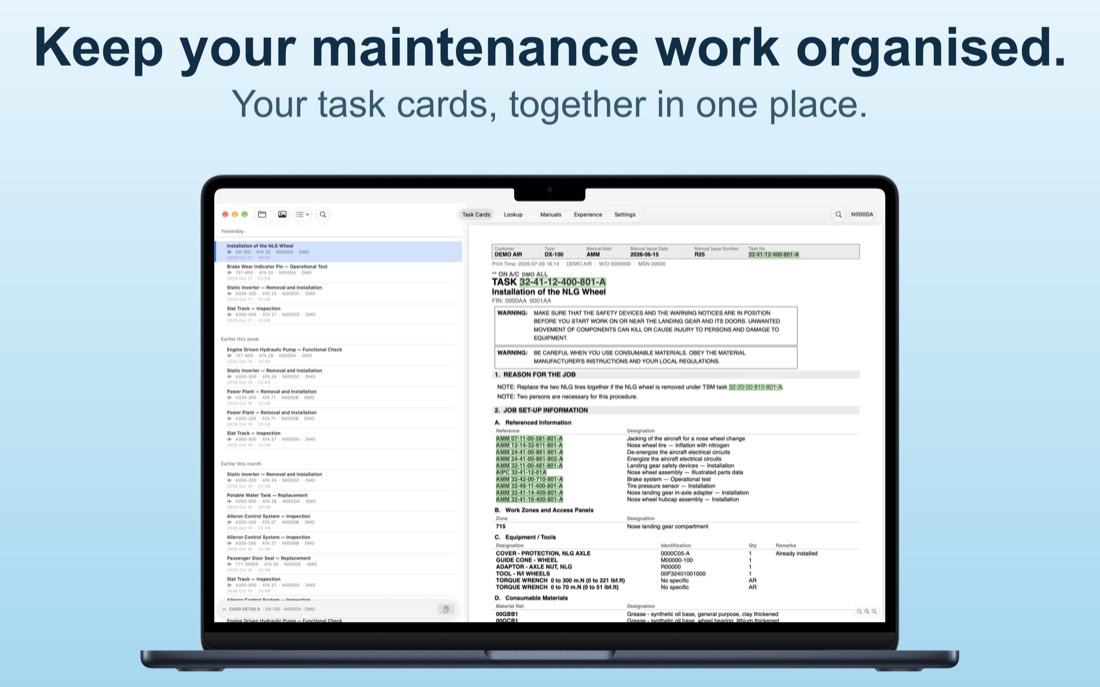
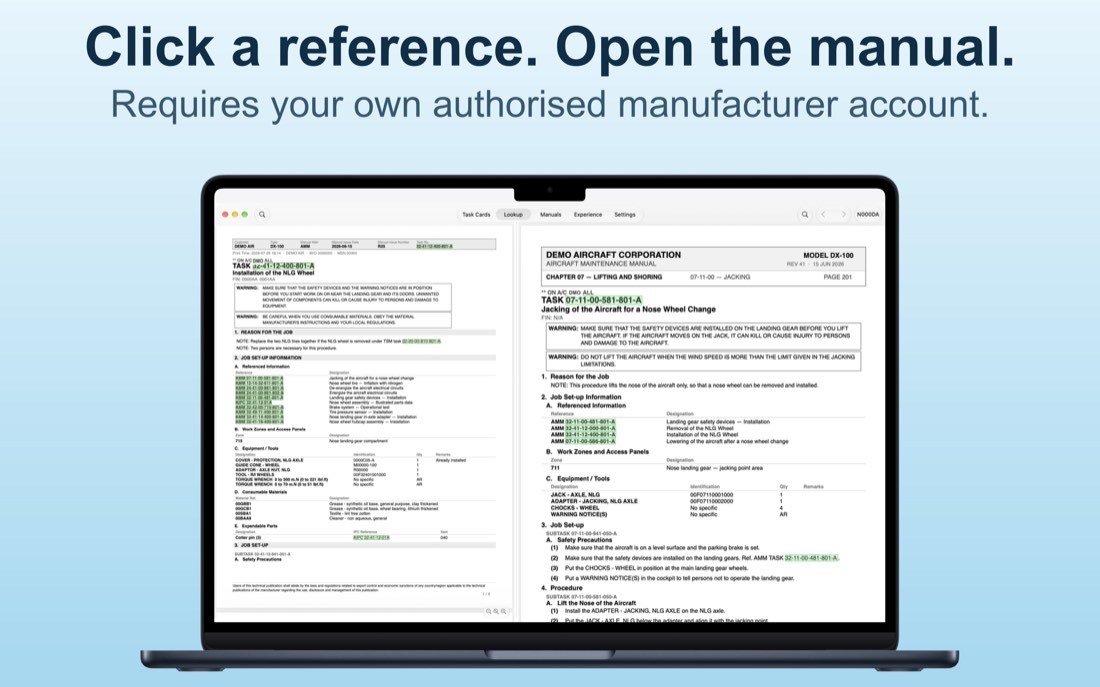
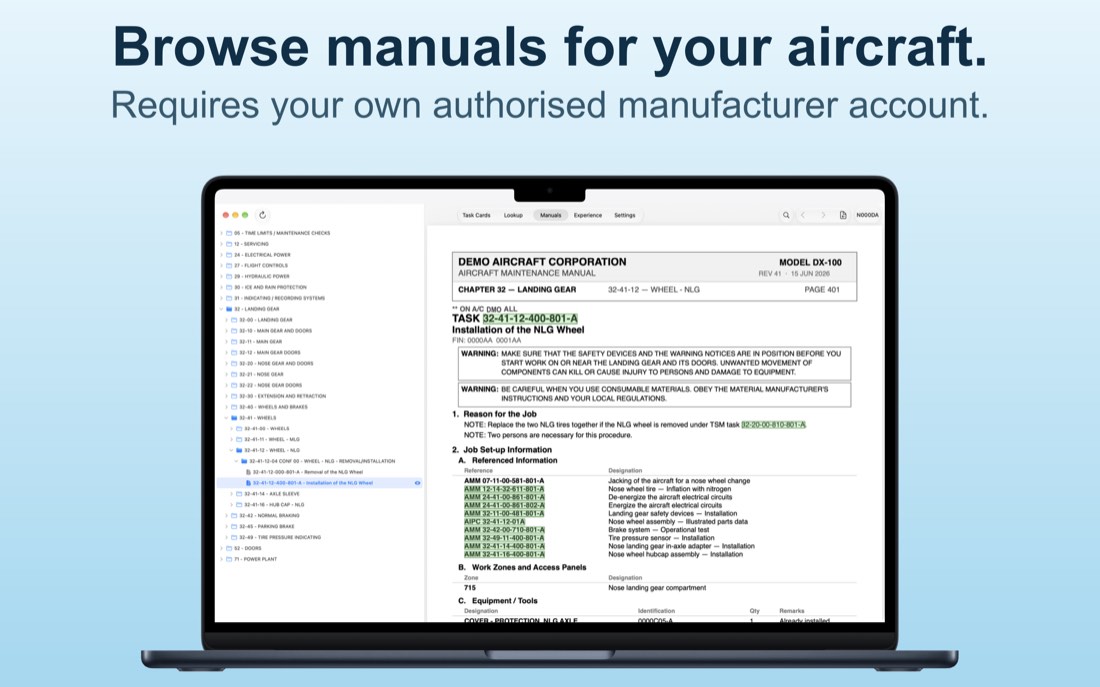
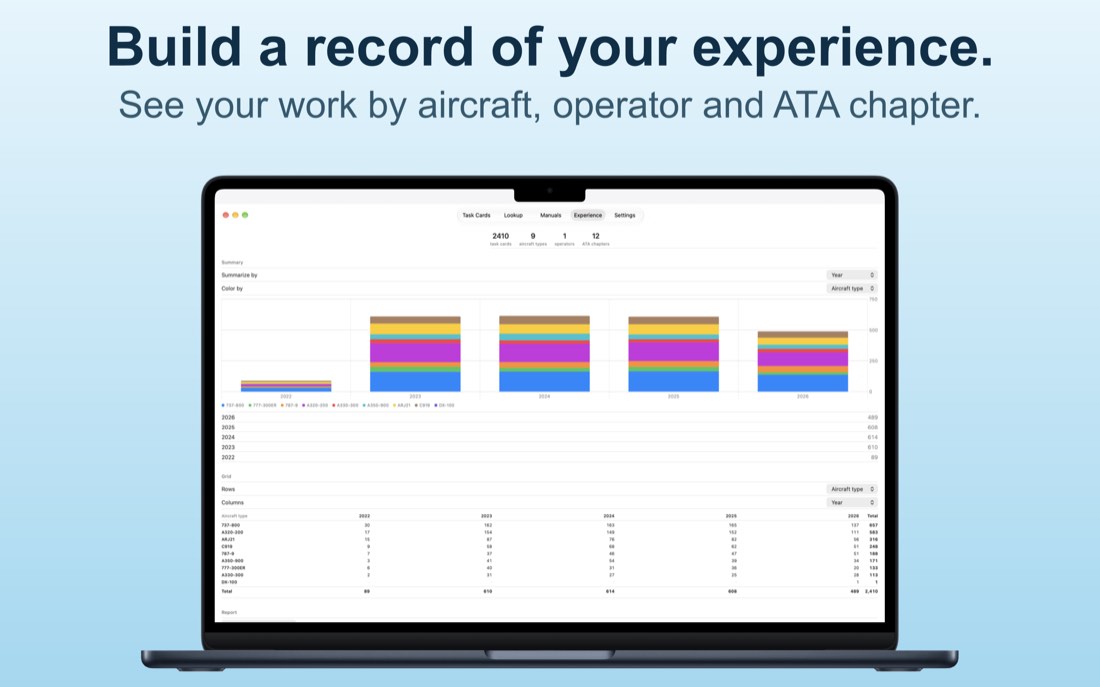
On Mac: the same library, in a resizable window.
Getting started
Steps 1 and 5 are all you need to keep a record. Steps 2 to 4 add manual access, if you hold a provider account.
- Add a task cardScan a paper card, import a PDF, or pick a photo, from the buttons at the top of Task Cards.
- Turn on a manual sourceOptional. In Settings ▸ Manual Sources, switch on the provider you hold an account for.
- Sign in and pick the aircraftTap the badge at the top right, sign in on the provider's own page, and choose the aircraft you are working on.
- Tap a task linkHighlighted references on a card open their manual document beside it, in Lookup.
- Watch your record growExperience totals everything you have filed, by aircraft, operator, ATA chapter and year.
Support
Email: ama@softonthego.com
Please include your device model, your iOS, iPadOS or macOS version, and the app version. If the problem is visible on screen, a screenshot helps. Replies usually come within a few working days.
You can also use Settings ▸ Support ▸ Contact the Developer in the app, which opens an email to the same address. If the app ever quits unexpectedly, it offers to send the crash report by email the next time you open it — nothing is sent unless you send it. For a problem that is hard to describe, turn on Settings ▸ Support ▸ Debug Mode, use the app until it happens again, and send the log from Debug Logs.
Common questions
Do I need an account to use the app?
No. Recording task cards, reading and editing them, the Experience totals and the report image all work without any account and without a network connection. An account is only needed for opening manual documents.
How do I turn on manual access?
Go to Settings ▸ Manual Sources and switch on the provider you hold your own account for: Airbus airnavX, MyBoeingFleet or COMAC FLYWIN. Then tap the badge at the top right and sign in on the provider's own page.
All three switches are off by default. Once you are signed in, the Manuals tab appears and recognised references on your cards become tappable.
Which MyBoeingFleet toolboxes are supported?
Toolbox, New Toolbox, Toolbox 787 and Toolbox Non-Boeing. New Toolbox support arrived in version 3.0.
The app shows what your own account carries. If you pick one your account does not include, you see the portal's own notice rather than anything the app invents.
Why isn't a reference on my card highlighted?
A reference is highlighted only when tapping it can actually open something: its provider has to be switched on in Settings ▸ Manual Sources, and an aircraft has to be set.
The aircraft is the one in the badge at the top right. A card filed under no source shows its references as plain text.
It says this aircraft's library has no such manual. What now?
A reference is resolved through the manual's own table of contents, for the aircraft you have selected. If that aircraft's library does not hold the document, the app says so rather than opening something that merely looks close.
Check the aircraft in the badge, or browse for the document in the Manuals tab.
Why does the operator show a code and a name?
Different providers write the same airline differently. The app files each card under the airline code they share, so your Experience totals count one airline once. The provider's own spelling is shown beside it, as it stood when you filed the card.
Where are my task cards stored?
On your device, or — if you turn on iCloud storage in Settings ▸ Task Card Storage — in your own iCloud Drive, where Apple syncs them between your devices. You can switch at any time and the app moves your files. Nothing is sent to the developer; there is no server behind this app.
A card shows its details but no document. Why?
That is expected for an older card if automatic cleanup is on. Cleanup frees storage by removing the documents of old cards while keeping their details as your permanent record. Those cards still count in your Experience totals.
You can turn it off in Settings ▸ Task Card Storage.
My library looks wrong after moving between devices.
Use Settings ▸ Maintenance ▸ Validate & Rebuild Library. It checks every file in your task card folder, sets aside anything it cannot recognise for you to review, and rebuilds the index from the details files that remain. It never deletes anything.
Can I get my data out?
Yes, and you do not need the app to do it. Every card is two ordinary files side by side in your task card folder: the document (PDF or image) and a small JSON file holding its details. Open the folder in Files or Finder and copy them anywhere. The Experience tab can also save a report image to Photos.
Does the app collect any data about me?
No. There is no analytics, no tracking, no advertising and no developer server, and nothing is transmitted automatically. The full policy is at /privacy/.
Is the app connected to Airbus, Boeing or COMAC?
No. Aircraft Maintenance Assist is an independent tool, and it grants no access to any provider: you see only what your own account is entitled to see, and each provider enforces its own permissions.